
Best overall for editing: Visual Studio Code. Best for automated checks: GitHub Actions. Best for tracking work: GitHub Issues. Best for reviewing your own merged pull requests: Pull Tally. The best developer productivity tools for startups in 2026 do different jobs; no single tool replaces an editor, an issue tracker, a check runner, and a record of completed work.
- Visual Studio Code is the best overall editing pick among these developer productivity tools for startups in 2026.
- GitHub Issues tracks tasks; GitHub Actions runs checks tied to repository activity.
- Pull Tally is best for individual developers who need to browse merged GitHub pull requests by month, organization, or personal repository.
- Merged pull request counts describe delivery history, not developer productivity.
Why this matters
At a startup, a developer can finish a feature, merge a fix, and move to the next task without recording what changed. Months later, a performance review or job application calls for examples. An issue tracker shows planned work, but a personal record of merged pull requests helps you find work that actually landed.
These tools serve different points in that workflow. Choose the one that removes the search or handoff you repeat. In 2026, the useful question is not which app makes a developer more productive; it is whether you need to edit code, track a task, run a check, or recover your own delivery history.
What makes the best developer productivity tool for a startup?
Use these criteria before adding another tool to your workflow:
- A distinct job. The tool should solve a named problem. If GitHub search already handles an occasional lookup, you do not need another place to browse the same work.
- A clear source of truth. An editor changes code, an issue records a task, and a merged pull request records code that landed. Do not treat those records as interchangeable.
- A manageable handoff. Check what you must copy between tools. Re-entering the same task description or status in several places creates work rather than removing it.
- Appropriate access. Know what repository information a tool needs and what signing in does not grant. Review access before using any tool with private organization work.
- A usable personal history. If you need review or job-search examples, you should be able to find your own merged work and explain its context—not just produce a count.
- Honest limits. A completed check does not establish that a feature met a user need. A merged pull request does not measure the effort, difficulty, or impact behind it.
The best choice depends on the gap. Start with the task you cannot complete cleanly in your current workflow, then judge a candidate against that task rather than a general promise to save time.
The picks at a glance
| Tool | Best for | Standout function | Key limitation |
|---|---|---|---|
| Visual Studio Code | Editing code | Editor with extensions and integrated development tools | Does not serve as your issue tracker or personal delivery record |
| GitHub Actions | Running repository checks | Automates workflows triggered by repository events | Requires workflow configuration and maintenance |
| GitHub Issues | Tracking tasks | Keeps issues alongside GitHub repository work | An issue alone does not show what you merged |
| Pull Tally | Reviewing personal merged PR history | Browse merged pull requests by month, organization, or personal repository | A PR tally does not explain impact or rate performance |
1. Visual Studio Code: best developer tool for editing code
Visual Studio Code is the default pick here for a developer who needs a code editor. You can write and inspect code in one place, then add extensions for the languages and tasks you actually use. Its job is the work in progress, not the record you assemble when that work is finished.
For a small startup, that distinction matters. A flexible editor helps you move between repositories without asking the rest of the team to adopt your personal workspace. It does not decide what the team should build or tell you which completed changes belong in a performance review.
Visual Studio Code pros:
- Gives individual developers an editor without prescribing a team-wide planning process.
- Supports extensions when your language or workflow calls for them.
- Keeps editing separate from decisions about task tracking and review documentation.
Visual Studio Code cons:
- Extension choices and settings take attention; adding more is not a substitute for a clear workflow.
- An editor cannot tell you which pull requests were merged across a review period.
Best for: Developers whose immediate bottleneck is writing, reading, and changing code. Verdict: Pick Visual Studio Code as an editor, then choose other tools only for work the editor does not do.
2. GitHub Actions: best developer tool for automated checks
GitHub Actions runs workflows in response to events in a GitHub repository. A startup can use it to run checks as code changes move through the repository. The value is consistency: a defined workflow runs the same specified steps instead of depending on someone remembering a manual command.
That benefit has a boundary. A check reports the outcome of the steps you configured; it does not prove that untested behavior works or that a change was the right product decision. In 2026, treat a passing workflow as evidence about its checks, not as a blanket quality verdict.
GitHub Actions pros:
- Connects automated checks to repository activity.
- Makes the configured workflow visible alongside code work.
- Reduces reliance on developers remembering to run the same manual checks.
GitHub Actions cons:
- Someone must define and maintain the workflows.
- A passing result says nothing about checks the workflow does not run.
Best for: Teams that repeat repository checks and want those checks to run through a defined workflow. Verdict: Pick GitHub Actions for repeatable checks; do not use its results as a measure of individual contribution.
3. GitHub Issues: best developer tool for tracking tasks
GitHub Issues gives a startup a place to describe and follow work connected to its repositories. An issue can hold the question, bug, or requested change before a developer starts coding. That makes it useful when the problem is losing track of what needs attention.
An issue is not the same thing as a merged change. A task can be closed for reasons that do not amount to shipped code, and a useful code change does not become a good review example merely because it has an issue. When you prepare a 2026 performance review, check the underlying work rather than turning an issue list into a claim about delivery.
GitHub Issues pros:
- Keeps task discussion close to repository work.
- Gives teammates a shared place to describe a bug or requested change.
- Helps you separate planned work from code that has already merged.
GitHub Issues cons:
- Task status alone does not establish what was merged.
- Issue descriptions still need maintenance when the scope of work changes.
Best for: A team that needs a shared task record next to its GitHub repositories. Verdict: Pick GitHub Issues for planning and follow-up, then inspect merged work when you need a personal delivery history.
4. Pull Tally: best developer tool for reviewing merged PR history
Pull Tally is a web tool for individual developers to browse and summarize their merged GitHub pull requests by month, organization, or personal repository. It fits a specific job: finding completed code work when you are preparing a performance review or recalling examples for a job search. It is not a team leaderboard or a replacement for an editor, task tracker, or check runner.
Start with the period you need to discuss. Browse the merged work, open the relevant pull requests for context, and write down what changed and why it mattered. A tally helps you find the work; it cannot supply the outcome or explain your contribution to a shared change.
Pull Tally pros:
- Organizes an individual developer's merged pull requests by month.
- Lets you browse that history by organization or personal repository.
- Replaces repeated manual searching when you need to review many merged pull requests.
Pull Tally cons:
- A merged pull request count is not a productivity score or an impact measure.
- It does not replace reading the changes and explaining their context.
Best for: Individual developers compiling examples of merged GitHub work for a review or job search. Verdict: Pick it when repeated searches make that task slow; skip it for a single occasional lookup you can complete with GitHub search.
Which tool fits the work in front of you?
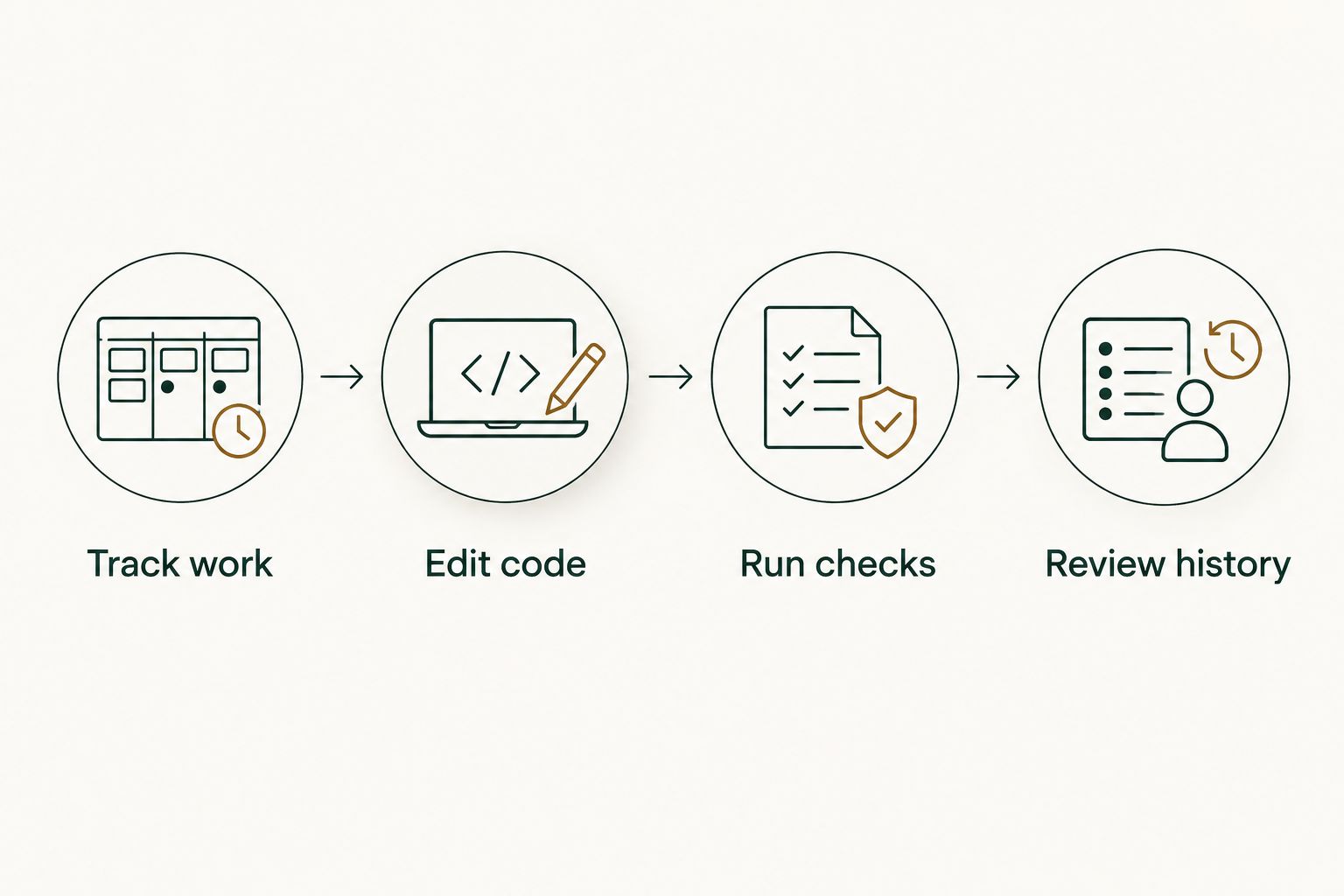
The tools above form a sequence, not a contest to own your whole workflow:
- Edit code: Use Visual Studio Code when the task is writing or inspecting a change.
- Track work: Use GitHub Issues when the team needs to describe or follow a task.
- Run checks: Use GitHub Actions when the repository needs repeatable automated checks.
- Review history: Use a merged pull request history when you need examples of work that landed.
For a review, set aside 20 minutes to identify relevant merged pull requests. For each example, record three details: the problem, your change, and the result you can substantiate. If you cannot substantiate a result, describe the change without assigning it an invented outcome. Two sentences about a specific change are more useful than a bare PR total.
This is also a way to decide whether a new tool earns its place in 2026. If the work is already easy to find, keep your current method. If you repeatedly search across months or repositories to reconstruct what merged, use a tool built for that browse-and-tally task.
How these picks are ranked
Visual Studio Code comes first because editing is the broadest individual developer need covered here. GitHub Actions and GitHub Issues follow because they address different shared repository tasks: running checks and tracking work. The personal history pick is narrower, but it directly addresses the gap an issue list, editor, and check result leave open when you need to describe what you merged.
This is a ranking by use case, not a measured speed contest. No pull request count, issue total, or passing check can rank developers. For a startup choosing tools in 2026, the right comparison is whether each one removes a specific repeated task without obscuring the source record.
Which developer productivity tool should you choose?
Choose Visual Studio Code if you need one default pick for editing. Choose GitHub Actions for repeatable repository checks and GitHub Issues for shared task tracking. If your immediate problem is reconstructing your own merged work for a review or job search, choose the personal PR history pick instead of adding another general-purpose planning tool.
Keep the tools separate in your explanation of work. An issue says what was requested. A check says what ran. A merged pull request shows a code change that landed. Your account of its significance still needs the surrounding context.
FAQ
What are the best developer productivity tools for startups in 2026?
Visual Studio Code is the default editing pick; GitHub Issues tracks tasks, GitHub Actions runs repository checks, and a merged PR history tool helps an individual review completed work. Choose according to the task you need to stop repeating.
Is GitHub Issues better than GitHub Actions?
Neither replaces the other. GitHub Issues tracks tasks, while GitHub Actions runs configured workflows in response to repository activity.
Can merged pull request counts measure developer productivity?
No. A merged pull request count is a record of delivery, not a productivity score. Read the changes and their context before describing a developer's contribution.
When should I use GitHub search instead of a PR history tool?
Use GitHub search for an occasional merged pull request lookup. A dedicated history view fits better when you repeatedly browse your merged work across months or repositories.
Does signing in alone connect private organization repositories?
No. Signing in alone does not connect private organization repositories. Check the access you authorize before browsing private organization work.
What GitHub data does the personal history tool access?
It uses read-only access to pull request metadata to help you browse and summarize merged work. Read-only access does not make a PR tally a measure of impact.
How should I prepare merged pull requests for a performance review?
Find relevant merged pull requests, then describe the problem, your change, and a result you can substantiate. Leave out outcome claims you cannot support from the work and its context.
One last thing
The most useful review example is not necessarily the month with the most merged pull requests. In 2026, start with a change you can explain clearly, then use the merged record to verify what landed. If you need a structure for turning those records into review notes, read this guide to brag documents for software engineers.