
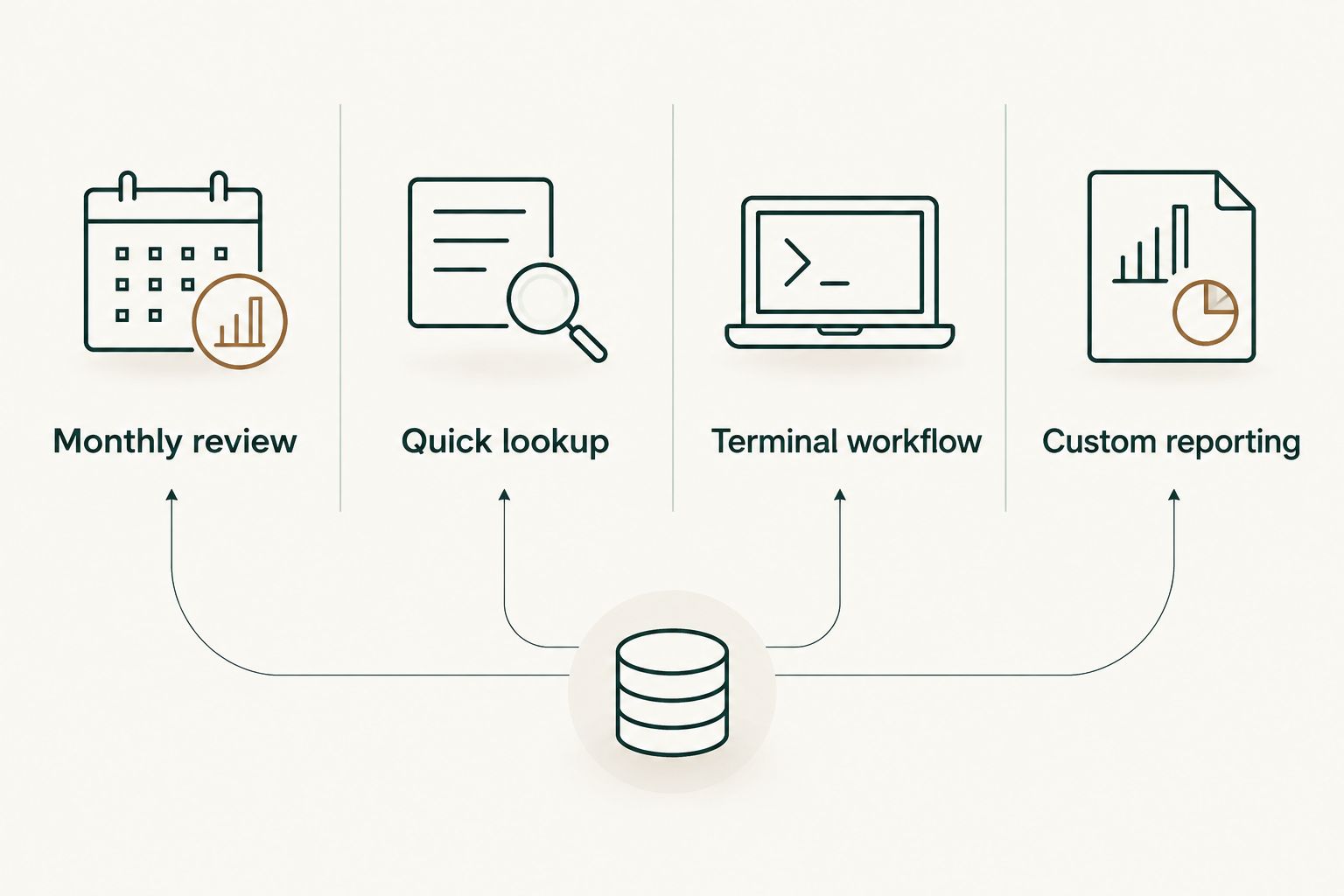
Best overall: Pull Tally for individual developers reviewing merged pull requests by organization. Best for a quick lookup: GitHub search. Best for repeatable terminal checks: GitHub CLI. Best for a custom report: GitHub API.
- Pull Tally is the best tool to track pull requests by organization when you need your merged history for a review or job search.
- GitHub search is the simpler choice for an occasional lookup of a specific pull request.
- GitHub CLI fits developers who want to repeat searches from a terminal; GitHub API fits a report they build themselves.
Why this matters
A list of merged pull requests can help you reconstruct what you worked on before a performance review or job search. An organization filter separates work across employers or projects, while a month view helps you place that work in time. Neither view tells you how difficult a change was or who contributed to it.
In 2026, choose the tool based on the task: browse your own history, find one pull request, repeat a terminal search, or build a report. Your merged pull requests are a record of work to inspect, not a productivity score. Read the descriptions and discussions before turning any count into a claim about impact.
What makes the best tool to track pull requests by organization
- Organization filtering: Can you separate pull requests associated with one GitHub organization from work elsewhere?
- Merged status: Can you focus on completed pull requests rather than mix them with open and closed work?
- Time context: Can you review when work was merged without opening every result individually?
- Repeatability: Can you return to the same view when you update a review document?
- Setup and access: Does the task justify connecting a tool, authenticating a terminal session, or writing code?
- Output: Do you need to browse results, export a history, or shape data for your own report?
A count alone does not settle a performance review. Use these criteria to find the relevant work, then inspect the pull requests that support the story you want to tell.
The options at a glance
| Tool | Best for | Standout feature | Key limitation |
|---|---|---|---|
| Pull Tally | Monthly review | Browse merged history by month, organization, or personal repository | Designed around your merged GitHub history, not a custom team report |
| GitHub search | Quick lookup | Search GitHub pull requests directly | Repeated searches take manual effort |
| GitHub CLI | Terminal workflow | Repeat pull request searches in a terminal | Requires a terminal workflow and query setup |
| GitHub API | Custom reporting | Select and process data in your own code | You must build and maintain the report |
The first option fits a developer assembling their own record. The other options make more sense when the job is narrower or when you need to control the search and reporting process yourself.
1. Pull Tally: best for your merged history by organization
Pull Tally is a web tool for individual software developers to browse and summarize their merged GitHub pull requests by month, organization, or personal repository. That combination fits a familiar 2026 task: you know you shipped work across several repositories, but you need to reconstruct which changes belong in a review document.
Start with the organization relevant to the review. Browse the merged work by month, then open the pull requests that need explanation. The monthly history can be exported, which helps when you want a working list outside the browsing view. Treat that list as a starting point: a merged pull request shows a change was merged, not what outcome it produced or whether you worked alone.
Pull Tally is best for individual developers who need to review their own merged GitHub pull requests by organization without repeating manual searches. It is not the default for someone who only needs to locate one known pull request.
Pull Tally pros:
- Browse your merged history by organization, month, or personal repository.
- Use the monthly view to revisit work before writing a review or updating a résumé.
- Export monthly history when you need a list to work through.
- Read-only access to pull request metadata addresses a practical concern when reviewing account permissions.
Pull Tally cons:
- A view centered on merged pull requests does not replace reading the discussion and code behind a change.
- It is built for an individual's delivery history, not described as a team-wide reporting system.
- A one-off lookup does not justify changing your workflow if GitHub search already answers it.
Access and trust: Pull Tally uses read-only access to pull request metadata. Signing in alone does not connect private organization repositories. If your review depends on work in a private organization, check what you have connected before assuming that work will appear.
Best for: An individual developer preparing a performance review or job search from merged GitHub work. Verdict: Buy if recurring manual searches are slowing down that task; otherwise, use the narrower option below.
2. GitHub search: best for a quick lookup
GitHub search is the direct choice when you need to find a specific pull request or inspect a short set of results. Search for pull requests with the author, organization, and merged status relevant to your question, then open the results to verify them. You stay in the place where the pull request and its discussion live.
For example, suppose a manager asks about a change you remember merging in an organization during 2026. Search for your work there and inspect the matching result. That is less effort than setting up a recurring reporting workflow for one question.
GitHub search becomes less convenient when the task changes from finding a result to assembling a history. If you have to revisit month after month and repository after repository, keep track of which searches you ran and which results you already reviewed. A search result is also a poor substitute for the explanation a review document needs: record the problem, your contribution, and the evidence separately.
GitHub search pros:
- Find and open a pull request without moving to another browsing tool.
- Narrow a search to the work relevant to the question.
- Inspect descriptions and discussions where the work happened.
GitHub search cons:
- Repeating searches across months and repositories is manual work.
- Search results still need sorting and interpretation before they become a useful review record.
Best for: A developer answering an occasional question about a particular merged change. Verdict: Buy for a quick lookup; hold if you regularly need a month-by-month account of your own work.
3. GitHub CLI: best for repeatable terminal checks
GitHub CLI suits a developer who already works in a terminal and wants to repeat pull request searches there. It is useful when your process involves checking a set of repositories, reviewing the results, and updating your own notes. You control the query rather than relying on a fixed browsing view.
Decide what a result means before you save it. A pull request you authored, one you reviewed, and one merged into a repository you worked on are different records. For a personal delivery history, start with pull requests you authored and confirm which were merged. If you include reviews or shared work, label them separately instead of treating every result as your own delivery.
The CLI is a workflow choice, not a claim that a terminal produces better evidence. It still returns pull request records that need human context. A repeatable command helps you revisit the same question in 2026, but it does not explain why a change mattered.
GitHub CLI pros:
- Keep repeated checks in a terminal workflow.
- Adjust searches to the repositories and pull request details you need.
- Reuse a query when you update your notes.
GitHub CLI cons:
- You must set up authentication and maintain the searches you rely on.
- Raw results need review before they support a performance or job-search claim.
- It adds work if you only need an occasional browser search.
Best for: A developer comfortable maintaining repeatable terminal queries. Verdict: Buy when that is already how you work; skip it for a single lookup.
4. GitHub API: best for a custom report
GitHub API is the flexible option when you need to write your own reporting logic. You can request GitHub data, process the fields your report needs, and decide how to group the results. That makes sense if an organization view is only one part of a report you have already decided to build.
Specify your rules before writing code. Define whether the report includes pull requests you authored, which merged work belongs to an organization, and how you will handle repositories that moved or changed names. Test the output against pull requests you can inspect directly. Without those checks, a polished report can still answer the wrong question.
For an individual developer preparing one review in 2026, this is usually more work than the task calls for. You own the authentication, requests, filtering, and upkeep. Choose it for control over the result, not because writing the report seems more rigorous than reading the underlying pull requests.
GitHub API pros:
- Define the fields and grouping for a report you build yourself.
- Combine pull request records with your own reporting rules.
- Reuse the resulting process when the same custom question comes up again.
GitHub API cons:
- You must write and maintain the code and access setup.
- Incorrect filtering rules can produce a misleading personal history.
- It does not supply the human explanation behind a merged change.
Best for: A developer building a report whose requirements are not met by a browser or terminal search. Verdict: Buy for a defined custom reporting need; skip it if you only need to browse your history.
How the tools were ranked
The ranking puts the stated job first: helping an individual developer review merged pull requests by organization. Monthly context and low-effort browsing matter more for that job than the ability to build a report from scratch. Pull Tally ranks first on that fit; GitHub search ranks next because it handles a smaller, common task directly.
The order changes if your job changes. For an occasional lookup, start with GitHub search. For a process you want to run from a terminal, choose GitHub CLI. For reporting rules you need to define in code, choose GitHub API. No ranking turns a pull request count into a measure of engineering impact.
Which tool should you choose?
Choose Pull Tally if you are preparing a 2026 review or job-search record and need to browse your own merged GitHub work by organization and month. Choose GitHub search when you need one answer. Move to GitHub CLI when you want to repeat terminal searches, or to GitHub API when you have a specific custom report to build.
Before you write a summary, open the pull requests you select. Check what changed, read the discussion, and separate your contribution from the broader project outcome. The tool finds the records; you supply the accurate account of the work.
FAQ
What's the best tool to track pull requests by organization in 2026?
Pull Tally is the best fit for an individual developer reviewing their own merged GitHub pull requests by organization and month. Use GitHub search instead when you only need a quick lookup.
Is Pull Tally better than GitHub search for one pull request?
No. GitHub search is the direct choice for locating one pull request; Pull Tally fits recurring reviews of your merged history.
Can I use GitHub CLI to check merged pull requests?
Yes. GitHub CLI supports pull request searches in a terminal workflow. Define the author, organization, and merged status relevant to your question, then inspect the results.
When should I use GitHub API instead of a browsing tool?
Use GitHub API when you need to build a report with your own filtering and grouping rules. You must also maintain the code and verify that its results match the work you intend to count.
Does signing in to Pull Tally connect private organization repositories?
No. Signing in alone does not connect private organization repositories. Check what you have connected before relying on the view for private organization work.
What access does Pull Tally use for pull requests?
Pull Tally uses read-only access to pull request metadata. Its purpose is to let an individual developer browse and summarize merged GitHub history.
Do merged pull request counts measure developer productivity?
No. A merged pull request count records part of a personal delivery history, not a productivity score. Read the change and its context before describing your contribution.
One last thing
For a 2026 review, the useful output is not the largest count. Find the merged pull requests that help you explain a decision, a change, or a collaboration, then write those examples in your own words. Keep the remaining history available for reference rather than forcing every result into the document.